Rendering with Vegas: Stop Creating Threads and Read

Lately I’ve noticed tons of questions popping up in the forums about rendering in Vegas. I’m guessing most of you are new to Vegas, so I will be going fairly in-depth in this blog.
We will be rendering using the Sony AVC codec. While this codec is idea for uploading to Vimeo and Youtube, NS will not accept it. In a later blog I will cover uploading to NS.
Rendering is one of the most important steps in your editing process. Choosing the wrong settings can turn your beautiful HD footage into the equivalent of something shot on a cell phone. Waiting on a video to render for several hours only to see the final product looks like shit is downright depressing. In this article I’ll show you how to get the best image quality into the smallest file size and give some tips to help prevent your hair from falling out.
The first thing you should do when preparing to render your video is find out the properties of your raw footage.
1. right click any clip in your project and click on properties.
2. click on the media tab
3. take note of the following items: Attributes(resolution), Frame Rate, Pixel Aspect Ratio.
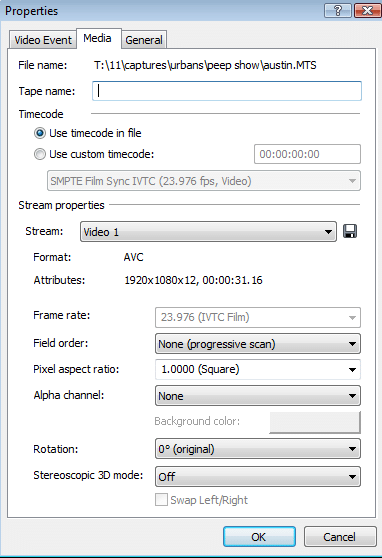
If your using footage with multiple framerates you’ll need to undersample all the higher clips to the value of your lowest framerate. To do click on the ‘Video Event Tab’ under properties. Where it says ‘Undersample rate’ change the value to match the other clips framerate. (I’ll cover more on why in a later blog)
If you haven’t already done so make sure your project properties match your video files.
Click the ‘Match Media Button’ and select a clip from your project.
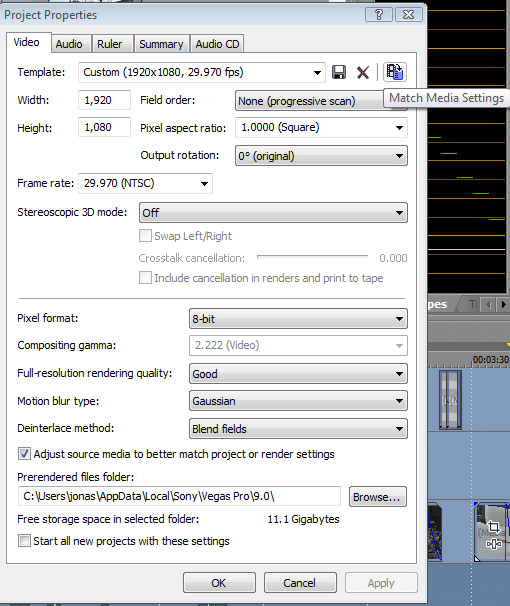
If you have files with different resolutions Vegas will automatically conform them as long as the pixel aspects match, but you’ll want to select the one with lower resolution when the time comes to render.
Now that we know our setting we are ready to render our footage. I’ve been using Vegas for 5 years now and the setting I will show you are, in my experience, the fastest, most compatible, and produce the best quality.
Click File-> Render as.
Save as Type: Sony AVC
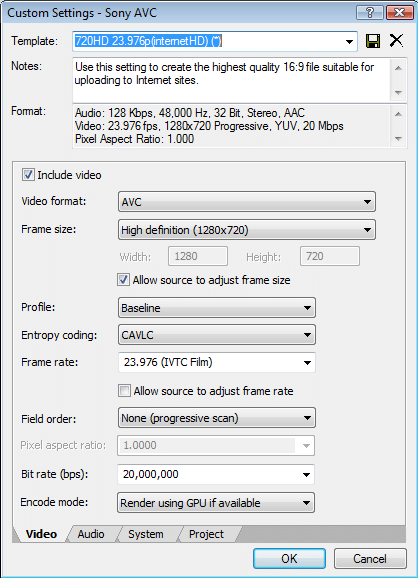
1. Video Format: AVC
2. Framesize: for putting HD videos online you’ll want to select 1280×720(unless your video is a different aspect ratio such as the r4 setting of a goPro which is 960p). If your rendering for a DVD or to get maximum quality select the resolution that matches your footage.
3. Profile: High profile will maximize your quality but take longer to render. Baseline is also more compatible with a larger range of video players. Some players may have issuing playing back a high profile video. From my experience the difference in render times and quality is unnoticeable for web videos so I typically render as baseline.
3. Entropy coding: CABAC vs CAVLC- This determines how your video will be compressed. CABAC allegedly has a better compression rate(meaning smaller videos) but takes more processing to decode(meaning slower systems won’t play it smoothly). From my experiences both will produce a file of the same size. I recommend using CAVLC.
4. Framerate- match the framerate to your footage. DO NOT ‘allow source to adjust frame rate’.
5. Field Order: Progressive if thats what your clips were shot in. Otherwise choose lower field first.
6. Bit-Rate: This will determine the overall quality of your video. Higher bit rates will result in a larger file. For HD choose anything from 7-20 million(or less if you need to meet a file size constraint).
7. Encode Mode: If your you have a new video card(last 2 years) you can select ‘render using GPU’ to take advantage of its processor to make your renders faster. This feature is only available in Vegas Pro 10.
8.click on the ‘project’ tab. Where it says ‘video rendering quality’ select best.
9. Finally save your preset so you don’t have to go back through this again.
There go you kid-o’s. Hopefully this post will save you more time than it took me to write. Check back in for more tips on using Vegas.
Render to be as smooth as original
I have Vegas 7 Pro and I’m trying to take an mp4 from a sony digital still camera and add a custom soundtrack.
The source mp4 is 1280×720 AVC 29.970fps progressive
I set the project format to the preset «HDV 720-30p (1280×720, 29.970 fps)»
Then I render as «MainConcept AVC/AAC (*.mp4)» and I have video set to 1280×720, 10Mbps average 20Mbps max, 29.970 fps,
When it’s done rendering and I playback the file it looks like its running at 15-20fps where as if I playback the original it’s smooth as silk. This is not a issue of machine power. I have a very high end machine. This is a rendering issue. I’m not setting something correctly.
I’ve tried different bit rates. At 4meg per second I get a 70meg file. The original is 104meg. If I set it 50meg per second I get a 425meg file. Both rendered files playback exactly the same, both look about half the framerate as the original
Really I’d be happy if there was a way for me just to replace the soundtrack without recompressing the video but short of that, how do I get it to at least render as smoothly as the original?
Comments
musicvid10 wrote on 4/22/2010, 3:54 AM
The problem may not be in the render, but in the playback.
How are you playing it back? In the Vegas timeline? On a software player?
Post your system specs.
Post your camera make and model.
Post all your original file details (download MediaInfo).
Post all your project settings.
Post all your render settings.
Upload a short sample of your original video.
Upload a short sample of your rendered video.
(Bob caught me in mid-edit).
farss wrote on 4/22/2010, 4:05 AM
«The problem is not in the render, but in the playback.»
Are we really certain of this?
What I’d suggest doing is this, add the timecode FX to the original material, render it out and check frame by frame. I’ve seen the results of some tests which suggest Vegas can duplicate frames at random causing errors in motion.
gmanjapan wrote on 4/22/2010, 11:23 PM
Here’s the details and the videos
———New Project Settings——
Video:
Width: 1280
Height: 720
Frame Rate: 29.970 (NTSC)
Field Order:None (progressive scan)
Pixel aspect ration: 1.0000 (Square)
Full-resolution rendering quality: Best
Motion blur type: Gaussian
Deinterlace Method: None
Audio:
Master bus mode: Stereo
Number of stereo busses: 0
Sample rate (Hz): 44,100
Bit depth: 16
Resample and stretch quality: Good
———Source-Video—————-
General
Name: MAH00933.MP4
Folder: F:\share\source-video
Type: MainConcept AVC/AAC
Size: 8.05 MB (8,242,737 bytes)
Created: 2010/4/22, 22:54:05
Modified: 2010/4/23, 13:53:10
Accessed: 2010/4/22, 22:54:05
Attributes: Archive
Streams
Video: 00:00:10.511, 29.970 fps progressive, 1280x720x32, AVC
Audio: 00:00:10.496, 48,000 Hz, Stereo, AAC
ACID information
ACID chunk: no
Stretch chunk: no
Stretch list: no
Stretch info2: no
Beat markers: no
Detected beats: no
Other metadata
Regions/markers: no
Command markers: no
Media manager
Media tags: no
Plug-In
Name: mcmp4plug.dll
Folder: C:\Program Files (x86)\Sony\Shared Plug-Ins\File Formats\MCMP4
Format: MainConcept AVC/AAC
Version: Version 1.0 (Build 686)
Company: Madison Media Software, Inc.
File name: MAH00933-rendered.MP4
Save as type: MainConcept AVC/AAC (*.mp4)
Project:
Video rendering quality: Best
video:
Frame size: (Custom frame size)
Width: 1280
Height: 720
Allow source to adjust frame size (unchecked)
Profile: Main
Frame rate: 29.970000
Allow source to adjust frame rate (checked)
Field order: None (progressive scan)
Pixel Aspect Ratio: 1.0000
Number of refrences frames: 2
Use deblocking filter: (unchecked)
Constant bit rate (bps): 4,000,000
Audio:
Sample Rate (Hz): 48,000
Bit rate (bps): 128,000
——System——
OS Name Microsoft Windows 7 Ultimate
Version 6.1.7600 Build 7600
System Manufacturer Dell Inc
System Model XPS 630i
System Type x64-based PC
Processor Intel(R) Core(TM)2 Quad CPU Q6600 @ 2.40GHz, 2403 Mhz, 4 Core(s), 4 Logical Processor(s)
BIOS Version/Date Dell Inc. 1.0.8, 7/15/2008
Installed Physical Memory (RAM) 4.00 GB
——GPU———-
Name ATI Radeon HD 4800 Series
PNP Device ID PCI\VEN_1002&DEV_9442&SUBSYS_05021028&REV_00\4&10BD3C89&0&0018
Adapter Type ATI display adapter (0x9442), ATI Technologies Inc. compatible
Adapter Description ATI Radeon HD 4800 Series
Adapter RAM 512.00 MB (536,870,912 bytes)
Installed Drivers atiumd64.dll,atidxx64.dll,atidxx64.dll,atiumdag,atidxx32,atidxx32,atiumdva,atiumd6a.cap,atitmm64.dll
Driver Version 8.681.0.0
Any ideas what settings I need to change in Vegas to make it render without the stutter?
Sony Vegas — render allowing source to adjust frame rate?
I have a bunch of mobile phone videos (different phones), that I want to render to one single video using sony vegas . Should I check allow source to adjust frame rate when rendering? Or should I rather use a fixed framerate like NTFS? What would give better results? Would allowing adjustment mean that each videos gets rendered in its original framerate? Means, the resulting one video would change the framerate during playback? And in case, would this be an advantage or disadvantage?
asked Jan 12, 2020 at 19:26
membersound membersound
289 2 2 gold badges 6 6 silver badges 16 16 bronze badges
1 Answer 1
I just wrote a nice detailed answer but somehow I deleted the draft. To save time, the simple explanation (EDIT: I haven’t gotten this from experience; I’m just going off what people have told me in the past):
Changing your frame rate to a fixed one produces exactly the same quality as using VFR (allowing the adjust of frame rate).
Checking the allow source to adjust frame rate button varies the frame rate in the rendered video for each source file. That means that if one of your source videos is 30fps and the next one 60, the frame rate will change when the next source video plays (from 30 to 60 in this example). I cannot think of a disadvantage of this, although re-editing the rendered video may be a bit weird (as shown in OSFirstTimer’s YouTube video). Also shown in OSFirstTimer’s video is that most phones record VFR videos but VEGAS Pro usually corrects that.
If you want to enable solid frame rate (Constant frame rate or CFR) follow this simple 2-step procedure:
- Find the source video with the highest frame rate
- Set your project to that frame rate
I’m new to Stack Exchange, so hope this helps!
@Gyan in the comments says that this is not the case because «outputting a 30 or 60 fps project timeline consisting of a 30 and 60 fps media clip with 30 or 60 fps output frame rate all result in CFR output.»
We all learn something new every day! 🙂
Also I haven’t had a dilemma between CFR and VFR before, I’m just going off what I’ve seen happen to other people!
Allow source to adjust frame rate sony vegas что это
Всем привет, столкнулся с проблемой в рендере.
Снимаю видео игры через bandicam, на выходе дает отличное качество с 60fps.
В вегасе манипуляций с видео практически не делаю, могу обрезать начало или конец на сек 10, накладываю только звуковую дорожку, при рендере предлагают 59.940fps но это явно не 60. Видео выходит не такое плавное как оригинал, как с этим бороться? Как выставить параметры чтобы вегас рендерил ровно в 60fps и достиг качества оригинала? А вообще интересует есть ли возможность чтобы видео не сжималось а просто добавлялась дорожка как в MKVtools и на эту манипуляцию времени уходит намного меньше.
Еще бывают тупняки когда фаел больше 3GB, при сворачивании проги и потом возврат в нее начинает висеть мол программа не отвечает, в течении минуты раздупляется.
Заранее благодарен за ответ.
Медиа инфу предоставляю.
General
Format : MPEG-4
Format profile : Base Media
Codec ID : isom (mp41)
File size : 14.8 GiB
Duration : 1h 3mn
Overall bit rate mode : Variable
Overall bit rate : 33.2 Mbps
Writing application : BandiMp4Muxer 1.0
Video
ID : 1
Format : AVC
Format/Info : Advanced Video Codec
Format profile : Main@L4.2
Format settings, CABAC : Yes
Format settings, ReFrames : 1 frame
Codec ID : avc1
Codec ID/Info : Advanced Video Coding
Duration : 1h 3mn
Bit rate : 33.0 Mbps
Width : 1 920 pixels
Height : 1 080 pixels
Display aspect ratio : 16:9
Frame rate mode : Variable
Frame rate : 40.858 fps
Minimum frame rate : 2.857 fps
Maximum frame rate : 60.060 fps
Original frame rate : 60.000 fps
Color space : YUV
Chroma subsampling : 4:2:0
Bit depth : 8 bits
Scan type : Progressive
Bits/(Pixel*Frame) : 0.389
Stream size : 14.7 GiB (99%)
Language : English
Audio
ID : 2
Format : AAC
Format/Info : Advanced Audio Codec
Format profile : LC
Codec ID : 40
Duration : 1h 3mn
Bit rate mode : Variable
Bit rate : 196 Kbps
Maximum bit rate : 284 Kbps
Channel(s) : 2 channels
Channel positions : Front: L R
Sampling rate : 44.1 KHz
Frame rate : 43.066 fps (1024 spf)
Compression mode : Lossy
Stream size : 89.4 MiB (1%)
Language : English
Vegas после рендера
General
Format : MPEG-4
Format profile : Base Media / Version 2
Codec ID : mp42 (mp42/isom)
File size : 10.5 GiB
Duration : 1h 3mn
Overall bit rate mode : Variable
Overall bit rate : 23.6 Mbps
Video
ID : 2
Format : AVC
Format/Info : Advanced Video Codec
Format profile : High@L4.2
Format settings, CABAC : Yes
Format settings, ReFrames : 2 frames
Format settings, GOP : M=2, N=30
Muxing mode : Container profile=High@4.0
Codec ID : avc1
Codec ID/Info : Advanced Video Coding
Duration : 1h 3mn
Bit rate mode : Variable
Bit rate : 23.4 Mbps
Maximum bit rate : 26.0 Mbps
Width : 1 920 pixels
Height : 1 080 pixels
Display aspect ratio : 16:9
Frame rate mode : Constant
Frame rate : 59.940 (60000/1001) fps
Color space : YUV
Chroma subsampling : 4:2:0
Bit depth : 8 bits
Scan type : Progressive
Bits/(Pixel*Frame) : 0.188
Stream size : 10.4 GiB (99%)
Language : English
Audio
ID : 1
Format : AAC
Format/Info : Advanced Audio Codec
Format profile : LC
Codec ID : 40
Duration : 1h 3mn
Bit rate mode : Constant
Bit rate : 128 Kbps
Channel(s) : 2 channels
Channel positions : Front: L R
Sampling rate : 48.0 KHz
Frame rate : 46.875 fps (1024 spf)
Compression mode : Lossy
Stream size : 58.4 MiB (1%)
Language : English
Настройки проекта и рендера


Конфигурация компа и системы
Gigabyte GA-B85-HD3.
Intel Core i7-4770.
Kingston HyperX KHX1600C9D3 2x4Gb.
NVIDIA GeForce GTX 670.
KINGSTON SSD SH103S3120G 120GB, SATA-III
WDC HDD WD15EARS-00MVWB0 2x1500GB, SATA-II
Window 7×64 ultimate
Sony Vegas Pro 13.0 (Build 453) x64