Мобильный Spotify без рекламы — как это можно организовать на Android
Spofity, как мы знаем, весьма успешно вычисляет и банит Premium-аккаунты с бесплатным доступом через всякие модифицированные APK. Но есть минимум один вполне легальный (пока) и бесплатный способ слушать Spotify без рекламы…
Сразу скажем, что из официального приложения убрать рекламу никак не получится, к сожалению (точнее, можно, но ненадолго и потом все равно акк забанят).
Но вот сделать так, чтобы её в Spotify слышно не было — это возможно. Притом, повторимся, без нарушения правил сервиса. И сейчас расскажем, как именно это делается.

Значит, по порядку:
#1 — Spotify без рекламы — включаем «В эфире»
Так данная опция доступна только в обычном мобильном приложении Spotify (официальном!) и не предусмотрена в приложениях Spotify Stations и Spotify Lite, то и этот способ выключить рекламу тоже применим только в обычном Spotify для Android. Это как бы еще одно уточнение.
- открываем приложение Spotify на смартфоне (планшете или ТВ-приставке);
- переходим в «Настройки» («шестеренка» — в правом верхнем углу экрана);
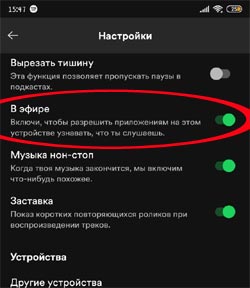
- экран настроек скроллим чуть вниз и активируем опцию «В эфире» (она же — «Device Broadcast Status«, на всякий случай):
#2 — Spotify без рекламы — устанавливаем Mutify
Можно непосредственно из Play Маркета — вот [ССЫЛКА], можно со страницы разработчика на GitHub — вот еще одна [ССЫЛКА]. На GitHub-е, к слову, приложение лежит еще и потому, что в официальном каталоге Google, как показывает практика, такого рода инструменты надолго не задерживаются и стараниями юристов Spotify эту программку оттуда тоже рано или поздно вышибут.
Отметим только, что на момент публикации этого поста на GitHub разработчик APK-файл Mutify еще не разместил. НО из того, что там выложено, APK можно оперативно смастерить с помощью Android Studio. Пока так…
#3 — Spotify без рекламы — отключаем «экономию энергии» для Mutify
Дело в том, что в последних версиях операционной системы Android в «круг полномочий» системы экономии заряда аккума помимо прочего входит также автоудаление из памяти устройства приложений, которые работают в фоновом режиме.
А так как Mutify — прога, хоть и не прожорливая, но постоянно функционирует «в фоне», то если её принудительно отключить, то и глушить рекламу в Spotify она не сможет.
Поэтому после установки Mutify:
- идем в «Настройки» Android;
- переходим раздел «Батарея» («Питание» и т.п.) и тапаем «Экономия заряда«;
- открываем список приложений, находим там Mutify и отключаем для него функцию оптимизации (разрешаем работать в фоновом режиме).
#4 — Spotify без рекламы — включаем Mutify
Для этого запускаем приложение Mutify и далее:
- на запрос включить функцию «Device Broadcast Status» (она же — «В эфире» и её мы уже включили) тапаем «I have enabled it«;
- теперь просто активируем опцию «Mute Ads«:
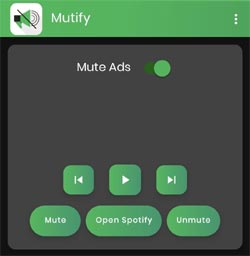
Вот и всё. Теперь можно запускать Spotify, и как только в нем будут включаться рекламные вставки, приложение Mutify будет автоматом вырубать у них звук (и затем включать с сохранением уровня громкости трека). Ну и в завершение — еще пара моментов:
- во-первых, время от времени система будет выдавать уведомления с напоминанием о том, что срабатывает Mutify, но их в любой момент можно отключить (просто тапаем по уведомлению и удерживаем нажатие);
- во-вторых, на предложения посмотреть короткое видео и потом получить 30 минут без рекламы, жмем «Нет».
How to Enable Device Broadcast Status Spotify? – Complete Steps

Kevin Wood Updated on 17 August 2023

Are you looking for ways how to enable device broadcast status Spotify? Well, you’re in luck. In this article, we will discuss why your device’s broadcast status Spotify is not working and how you can turn it back on. If you like to share the music you’re listening to, Spotify’s device broadcast status feature is the way to do it. However, there are instances where it doesn’t get displayed all the time. When this happens to you, don’t worry because we’ve got you covered! To enable device broadcast status Spotify, open your Spotify app and tap the Home button. Then, tap the Settings button and toggle Device Broadcast Status. Play a new track on Spotify and check if the issue is cleared. If your device broadcast status Spotify stops working, we suggest you determine the culprit so that you can apply appropriate action. Let us discuss the possible causes below.
Why My Device Broadcast Status Spotify Not Working
Your device broadcast status on the discord depends on the type of activity you currently have. For instance, it will show Playing on Spotify if you are using the streaming app. If Spotify isn’t linked to other apps correctly, it could also be the reason it isn’t showing on Discord. Unfortunately, multiple users encountered a problem where the Discord app does not display their Spotify status. Below are some of the possible reasons.
1. Not Using A Compatible App
The broadcast status feature is only compatible with the desktop version of Discord. If it isn’t working, you probably have an incompatible app.
2. Device Broadcast Status Not Enabled
Most users like to disable this feature for various reasons. You may have forgotten to allow for it again in your settings. That’s why it’s not showing.
3. Apps Not Linked Properly
You may not have connected your Spotify and Discord accounts properly. To display the broadcast status, you need to give other apps permission.
4. Temporary Issues On Both Apps
Corrupt cache and storage may be causing the problem. But, a quick reinstall or cache clearing can help fix it. These are the possible reasons your device broadcast status Spotify isn’t working. Now, we can move on to the solutions.
How to Turn On Device Broadcast Status Spotify

If the device broadcast status Spotify isn’t working, there are several troubleshooting steps you can try to resolve the problem. Start by restarting your Spotify and the linked apps. Restarting your Spotify can help fix common issues, including device broadcast status not working. Simply close Spotify and the linked apps on your device and launch them again the usual way. This only takes a moment, but it might solve your problem. Other things to try include restarting your device, resetting your network settings, and disabling hardware acceleration. We listed other simple yet effective solutions you can try at home.
Step #1: Perform a Clean Reinstall of Spotify on Your Device

Successfully sharing and broadcasting your Spotify status on other apps can get quite tricky. However, there are ways to make it a lot easier, especially if you already know what you’re doing. If you really want to show your Spotify status, the first thing you need to do would be to perform a clean reinstall of your Spotify app. A clean reinstall simply means a more thorough way of doing it. It takes a bit more time with additional steps, but it will ensure that any temporary gets flushed out in the process. Here’s how to clean reinstall the Spotify app on your device:For Android devices:
- Open your phone’s Settings.
- Tap on Apps, then choose Spotify from the list.
- Tap on Storage.
- Look for Clear storage and Clear cache, and tap on them.
- Go back to the previous screen and select Uninstall.
Note: You’ll also need to go to your phone’s storage and remove the data.spotify.music folder.
For iOS devices:
- Look for the Spotify icon on your phone.
- Tap and hold it.
- Select Remove app.
- Choose Delete app to confirm.
Tip: You will need to go to your phone’s respective app store and download Spotify.
Step #2: Clear Your Spotify Cache

Since Spotify is a music streaming app, it does make room for some storage concessions. For one, it has a different storage setup with a much larger cache so that it can save songs for quick access.
Spotify needs this so that it can play music and podcasts seamlessly without lagging and buffering.
If you’re having issues with its device broadcast status, try clearing out Spotify’s cache to see if it resolves the issue.
Here’s how to clear your Spotify cache:
Note: Spotify’s cache storage differs from its Downloads folder, so don’t be alarmed if it uses more space than your other apps.
Step #3: Enable the Device Broadcast Status on Android
Enabling the device broadcast status feature on Spotify allows other apps to see what you’re currently listening to.
It’s an excellent feature for community apps such as Discord. This way, everyone will know that you’re listening and can also join in.
Android supports this feature natively, so you won’t have to worry about not being able to use this.
Now, you’ll be able to share what you’re listening to with your friends on Discord.
Here are the steps on how to enable this feature on your Spotify app:
- Open the Spotify app on your phone.
- Go to Settings by clicking on the gear icon.
- Scroll down to find the Device broadcast status option.
- Toggle the slider to the ON position.
Note: You can now share your Spotify data with other apps that you currently have on your phone.
Step #4: Enable Device Broadcast Status on iOS
Discord is the number one place where you’ll use the Device broadcast status feature on your phone.

The problem here is that this is not a quick integration with iOS. It seems that it’s difficult to activate this feature compared to Android devices.
There is a workaround, though, but it will require you to open a couple of additional apps.
It’s not crazy complicated, but the main requirement here is to use the web version of Discord so you can allow showing your Spotify status.
Here’s the workaround for iOS devices:
- Open the Safari web browser on your iOS device.
- Log in to your Discord on the Safari browser.
- Go to your User Settings.
- Add a Connection on Discord with Spotify.
- Toggle the Display Spotify as your Status to ON.
Note: These are also the steps you need to follow if you want to enable broadcast status for computers and laptops.
Step #5: Enable Displaying Your Status on Discord or Other Apps
Of course, it won’t be complete if you link Spotify with Discord or other apps but then do not set it to show your status.
Some users like to disable or hide their status from social apps like Discord.
However, if you’re looking to broadcast your Spotify status, you need this to appear for everyone to see.

If you’re on Discord, you want to make sure that it’s displaying your status to show your Spotify activity.
Here’s how to ensure your status will be displayed on Discord:
- Open the Discord app on your device.
- Check that you are showing your status and it’s enabled.
- Check that Discord is linked and detecting Spotify.
- You may need to link Discord and Spotify manually.
- Set your Discord status to Online.
Here’s how to manually link Discord and Spotify:
- Open the Discord app on your device.
- Go to your User Settings and navigate to Connections.
- Select Add at the top of the page.
- Choose Spotify from the list of apps.
- Sign in to your account to complete the link.
Note: This should work with other apps, as well. It’s only that Discord is the best example as of this time.
This is how you do it!
You should be broadcasting your Spotify status to every app you can get your hands on.
If you’re having issues with linking, you can always contact Spotify customer support to get help.
You can also go to Spotify’s online forums and ask other users about their experience with this feature.
Bottom Line
Now that you know how to enable device broadcast status Spotify, you will be able to link lots of apps to Spotify.
Your Discord channel should always display what song you’re listening to and share it with your friends.
As long as you follow the steps provided, you should be able to set this up in under 10 minutes.
Kevin has over five years of experience working in various Tech startups and providing Technical solutions. He has contributed to many Tech publications and websites.
Spotify Connect
Spotify Connect позволяет удаленно управлять воспроизведением на одном устройстве с помощью другого.
Чтобы узнать, совместимо ли ваше устройство со Spotify Connect, перейдите на страницу Spotify Listen Everywhere или обратитесь к производителю.
Использовать Spotify Connect
При первом подключении к колонке все устройства должны находиться в одной сетиWi-Fi.
- Откройте Spotify и включите что-нибудь.
- Коснитесь значка в нижней части экрана.
- Выберите устройство, на котором хотите слушать контент.
Примечание. Если остановить воспроизведение больше чем на 10 минут, может потребоваться повторное подключение.
Нужное устройство не отображается?
- Если в списке есть несколько устройств с одинаковым именем (например, iPhone), попробуйте подключиться к каждому по очереди.
- Если войти в устройство с помощью учетных данных Spotify, оно должно появиться в приложении, даже если не находится в той же сети Wi-Fi.
- [Mobile] Параметр Только устройства в локальной сети можно отключить в приложении: выберите «Настройки > Устройства». В таком случае приложение будет искать все устройства поблизости, а не только подключенные к вашей сети.
- [Web player] Веб-плеер работает только с устройствами, в которые выполнен вход, или Google Cast в текущей сети (при использовании браузера Chrome). Если устройство не показывается, попробуйте зайти в приложение.
- [iPhone] Убедитесь, что у Spotify есть доступ к локальной сети. Выберите «Настройки > Spotify > Локальная сеть» и активируйте переключатель.
Не работает Connect?
- Перезапустите Spotify.
- Перезагрузите устройство, на котором хотите слушать контент.
- Перезагрузите устройство, на котором открыто приложение Spotify.
- Установите последнюю версию приложения Spotify.
- Убедитесь, что ПО всех устройств тоже обновлено.
- Подключите устройства к одной сети Wi-Fi.
- Перезапустите маршрутизатор или попробуйте подключиться к другой сети.
- [Android TV] Разрешите Spotify работать поверх других окон. Чтобы включить этот параметр, перейдите в «Настройки > Приложения > Специальный доступ > Наложение поверх других окон».
Увидели незнакомое устройство?
Возможно, вы вошли в систему на этом устройстве и забыли выйти. Если у вас нет доступа к этому устройству, попросите его владельца выйти из вашего аккаунта.
Вот что вам еще доступно:
- Удалить устройство из списка, чтобы не подключаться к нему по ошибке. Для этого нажмите рядом с устройством на значок с тремя точками, а затем выберите Забыть устройство.
- Отвязать аккаунт Spotify от приложения производителя, например Amazon Alexa.
- Выйти сразу со всех устройств на странице аккаунта. Для дополнительной безопасности рекомендуем также сменить пароль.
Похожие статьи
- Как обновить Spotify
- Как слушать Spotify через динамики
- Справка по Bluetooth для Spotify
Была ли эта информация полезной?
Mutify – блокировка рекламы в Spotify 2.5.2
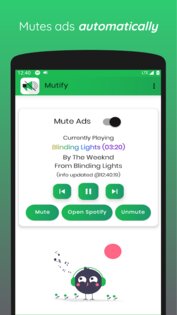
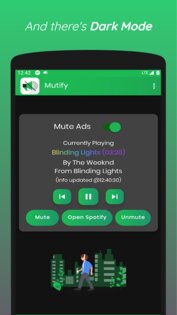
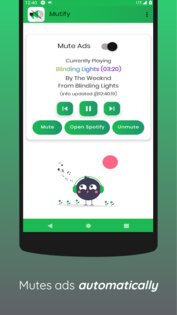
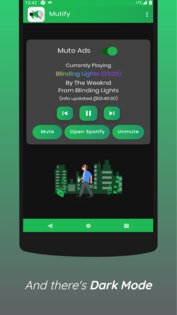
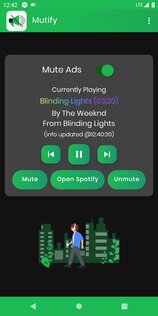
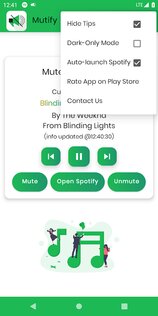
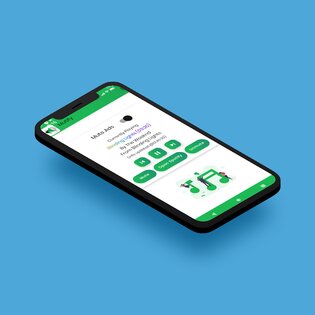
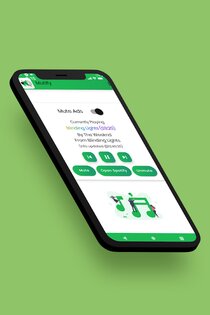
Mutify — приложение для блокировки рекламы в Spotify, совершенно бесплатное и работает в фоновом режиме.
Лучший Telegram-канал про технологии (возможно)
Всякий раз, когда Mutify обнаруживает, что Spotify воспроизводит рекламу, он снижает громкость музыки до нуля, чтобы вы могли расслабиться и наслаждаться любимой музыкой, не беспокоясь о раздражающе громкой рекламе Spotify.
- Вы ДОЛЖНЫ включить «Device Broadcast Status» в настройках Spotify, чтобы Mutify работал.
- Добавьте Mutify в список исключений в списке Экономия заряда батареи, чтобы он работал без перебоев в фоновом режиме!
- Простой и понятный интерфейс.
- Темная тема.
- Кнопки ручного отключения / включения звука.
- Управляйте воспроизведением не выходя из приложения.
Отказ от ответственности: Mutify НЕ блокирует рекламу, он просто отключает громкость на устройстве всякий раз, когда обнаруживается воспроизведение рекламы. Таким образом, он не мешает вашему приложению Spotify и не запрашивает никаких ненужных разрешений для работы.
Spotify Lite НЕ поддерживается!
Баги найденные в приложении можно отправлять сюда: teekam.suthar1@gmail.com
Исходный код приложения: github.com/teekamsuthar/Mutify.